
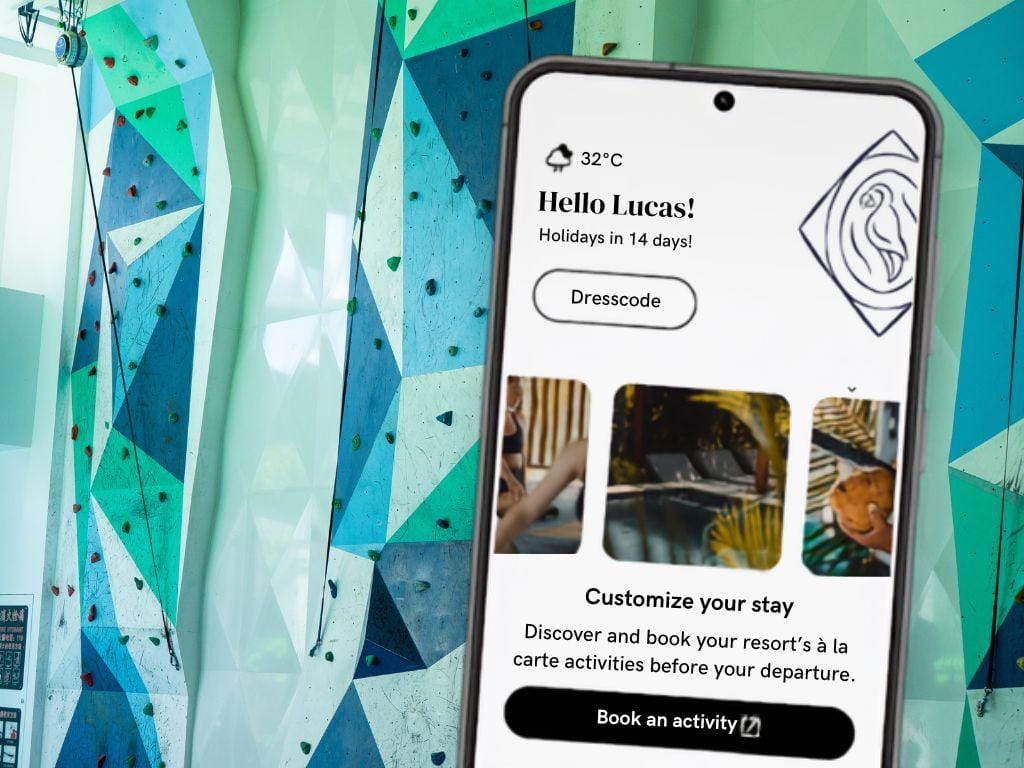
Whether you are prepping for a sunny getaway to Club Med Phuket or packing your gear for a ski holiday to Club Med Sahoro in Hokkaido, the My Club Med app (App Store or Google Play) is your ultimate pocket-sized resort companion. It holds everything from daily dress codes and activity schedules to resort information and specialty restaurant menus.
But before you can start customizing your itinerary, you need to access your account.
Logging in is quick and straightforward, but there are two different ways to do it depending on what information you have on hand. Follow this simple guide to complete your My Club Med app login and get ready for your vacation.
2 Ways to Complete Your My Club Med App Login
You can choose whichever method is easiest for you:
Method 1: Sign In via Customer Account (Email & Password)
If you already have an active online member account on the official website, this is the most direct path.
- Open the app and tap the Log In button.
- Enter the Email Address linked to your holiday booking.
- Enter your Password and hit submit.
Forgot your password? Tap the “Forgot Password” link on the login screen. Club Med will send a password reset link to your email so you can reset it and get right back in.
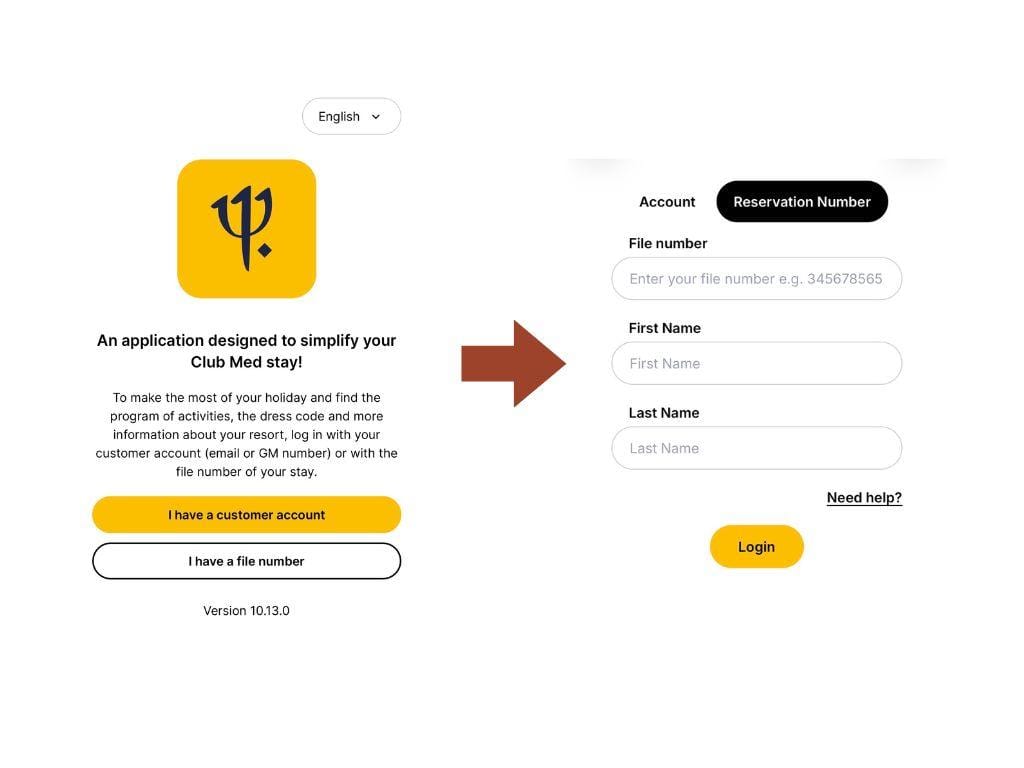
Method 2: Sign In via Booking File Number
If you haven’t created a password yet or can’t remember your login details, you can access your specific trip using your reservation credentials.
- On the main screen, select the option to sign in via File Number (also known as your Booking Number or GM Number).
- Enter your alphanumeric File Number. You can easily find this code on your sales contract, booking confirmation email, or balance payment receipt.
- Enter your Last Name exactly as it appears on your travel documents.
My Club Med App Troubleshooting: What to Do If You’re Locked Out
If the system gives you an error during the Club Med sign in process, check these three common troubleshooting spots:
- The “GM Number” Alternative: If your email address isn’t working, try signing in using your Great Member (Client Number) number. This is your permanent customer ID, found at the top of the Club Med booking confirmation.
- Turn Off Your VPN: The app uses strict security protocols to protect user data. If you are using a VPN or proxy network, turn it off and try logging in again.
- Update the App: Outdated versions can cause server authentication errors. Ensure you have the latest My Club Med app download from the Apple App Store or Google Play Store.
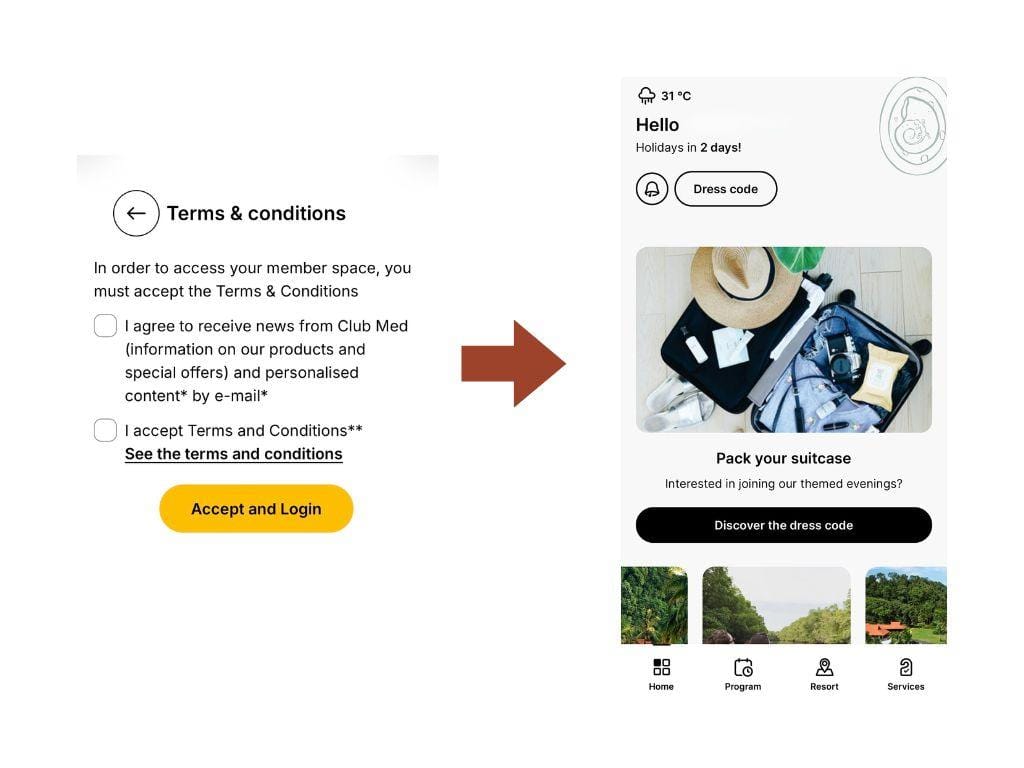
Once you are logged in, you can use the Facilitate Your Arrival service (vary by resort) to log your preferences, fill out your digital check-in, and have your ski gear or kids’ club registration completely prepped before you arrive.
Frequently Asked Questions about My Club Med App
Can I log into My Club Med app before my booking is fully paid?
Where exactly can I find my Club Med Booking File Number?
You can easily locate your booking file number prominently displayed at the top left corner of your Club Med Booking Confirmation document.
Why is the app asking for a “GM Number”?
If you select the Customer Account login method, you can use either your registered email address or this GM number along with your password.
Can multiple people log into the same booking on different phones?
What should I do if I can’t see my booking in the My Club Med App?
Step 1: Verify your login email: First, make sure you logged in using the exact email address that was used to make your booking. If you used a different or secondary email, the app won’t be able to link your account to your reservation.
Step 2: Switch Stays: If your email is correct but you have multiple bookings linked to your account, the app might just be displaying an older or different trip by default. Go to the bottom menu, select Services, and then tap Switch To Another Stay to choose the correct itinerary.
Step 3: Force Refresh: If the booking still isn’t showing up, simply log out of the My Club Med app completely and log back in. This forces the app to refresh its database and pull your latest travel details directly from the Club Med system.
Ready for Your Next Adventure?
Now that you’re successfully signed in, you can sit back, relax, and let the countdown truly begin. Be sure to check the app a few weeks before your departure to complete your digital check-in (if available) and view your resort’s daily dress codes.
Safe travels, and enjoy your Club Med getaway!